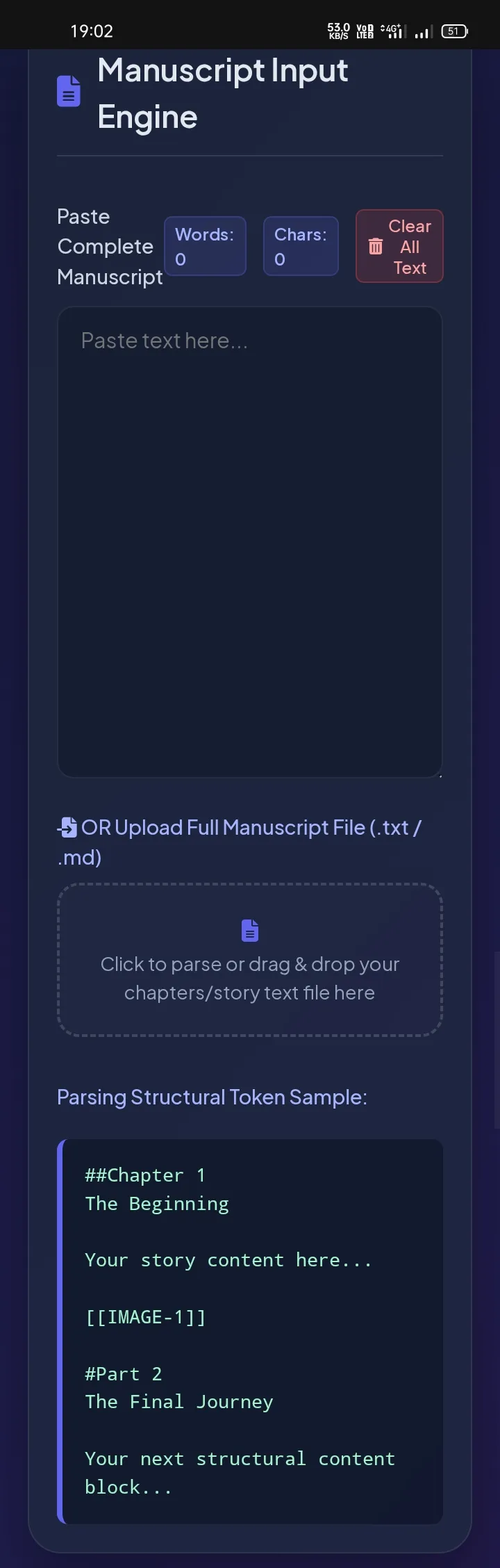
Click to parse or drag & drop your chapters/story text file here
##Chapter 1
The Beginning
Your story content here...
[[IMAGE-1]]
#Part 2
The Final Journey
Your next structural content block...
Add Another Image
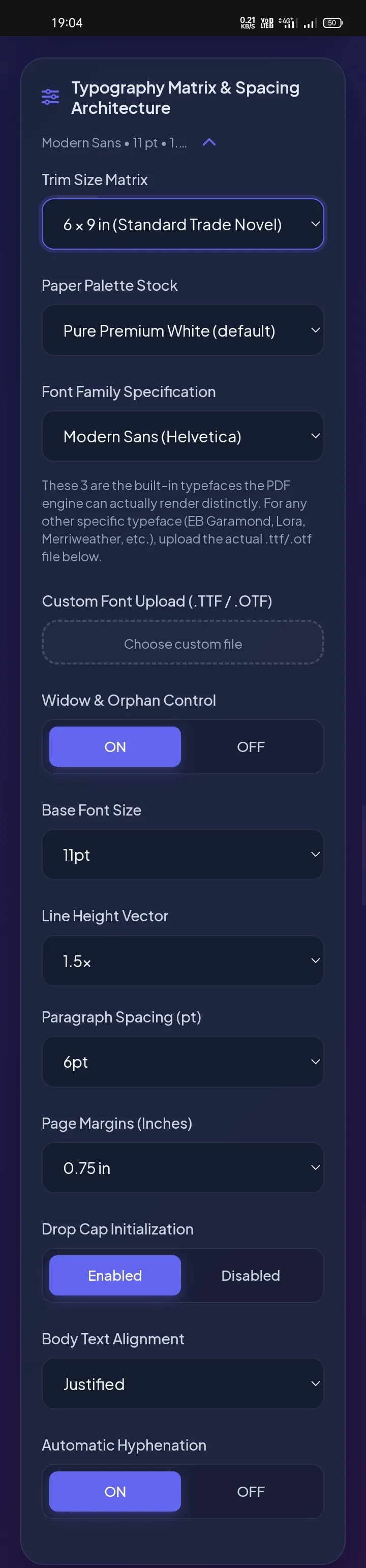
These 3 are the built-in typefaces the PDF engine can actually render distinctly. For any other specific typeface (EB Garamond, Lora, Merriweather, etc.), upload the actual .ttf/.otf file below.
Choose custom file
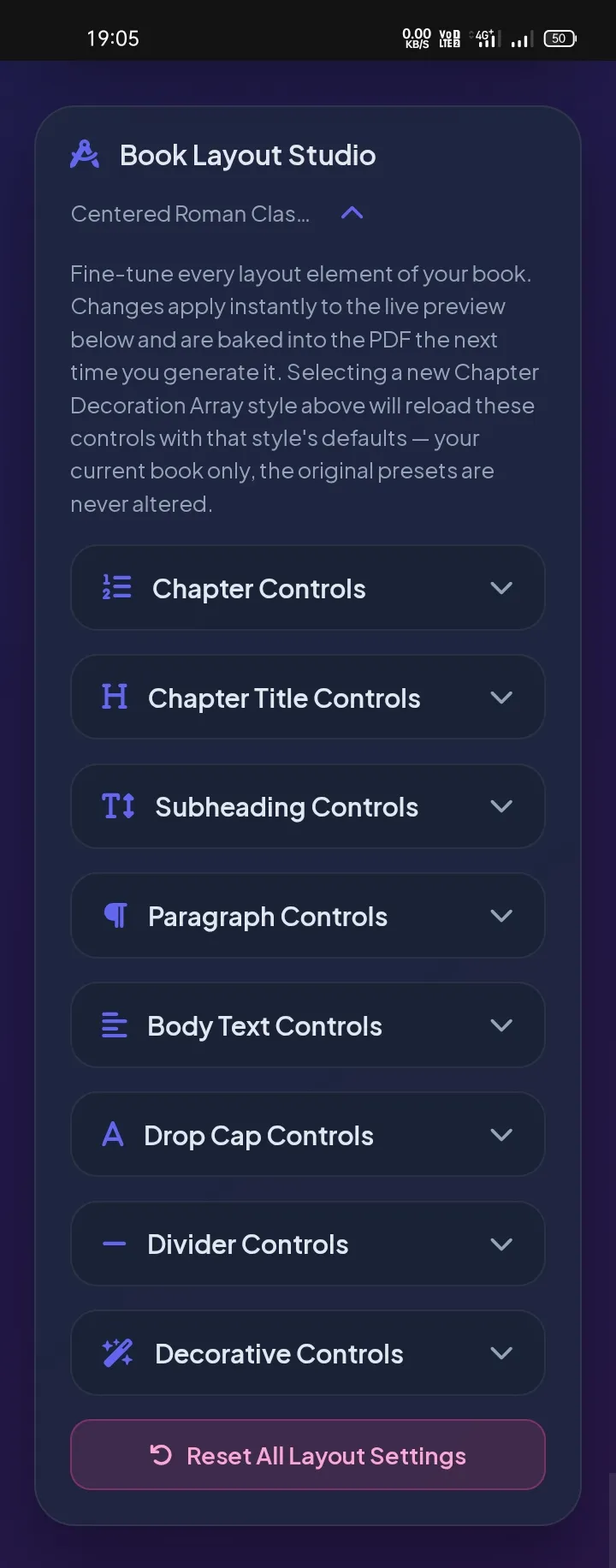
Fine-tune every layout element of your book. Changes apply instantly to the live preview below and are baked into the PDF the next time you generate it. Selecting a new Chapter Decoration Array style above will reload these controls with that style's defaults — your current book only, the original presets are never altered.
Controls the chapter number label (e.g. "Chapter 1"). Only applies to chapters formatted as "Chapter N: Title".
--
0pt
0pt
0pt
--
0pt
1.25x
0pt
0pt
--
0pt
0pt
0pt
Use First Line Indent + 0pt paragraph spacing for the classic novel look, or leave indent off and rely on paragraph spacing for a modern block-style layout.
18pt
0pt
8pt
Affects body paragraph text only — chapter titles and headings are untouched.
11pt
1.5x
0pt
0pt
Only the first paragraph of each chapter receives the drop cap.
6.0x
4pt
3
Fine-tunes the divider drawn under chapter-opening subheadings and the "Minimal Geometric Divider" decoration asset. Existing divider styles (thin / heavy / double / dot / diamond) are preserved.
100%
100%
0pt
0pt
Fine-tunes whichever Chapter Title Decoration is selected in the Chapter Decoration Array above (Floral Vector, Geometric Divider, or Custom Graphic) — it does not replace that choice.
100%
0pt
0pt
100%
100%
0pt
0pt
Select PNG Asset
40%
0pt
0pt
Select PNG Asset
90%
-2pt
2pt
Select File
30%
0pt
0pt
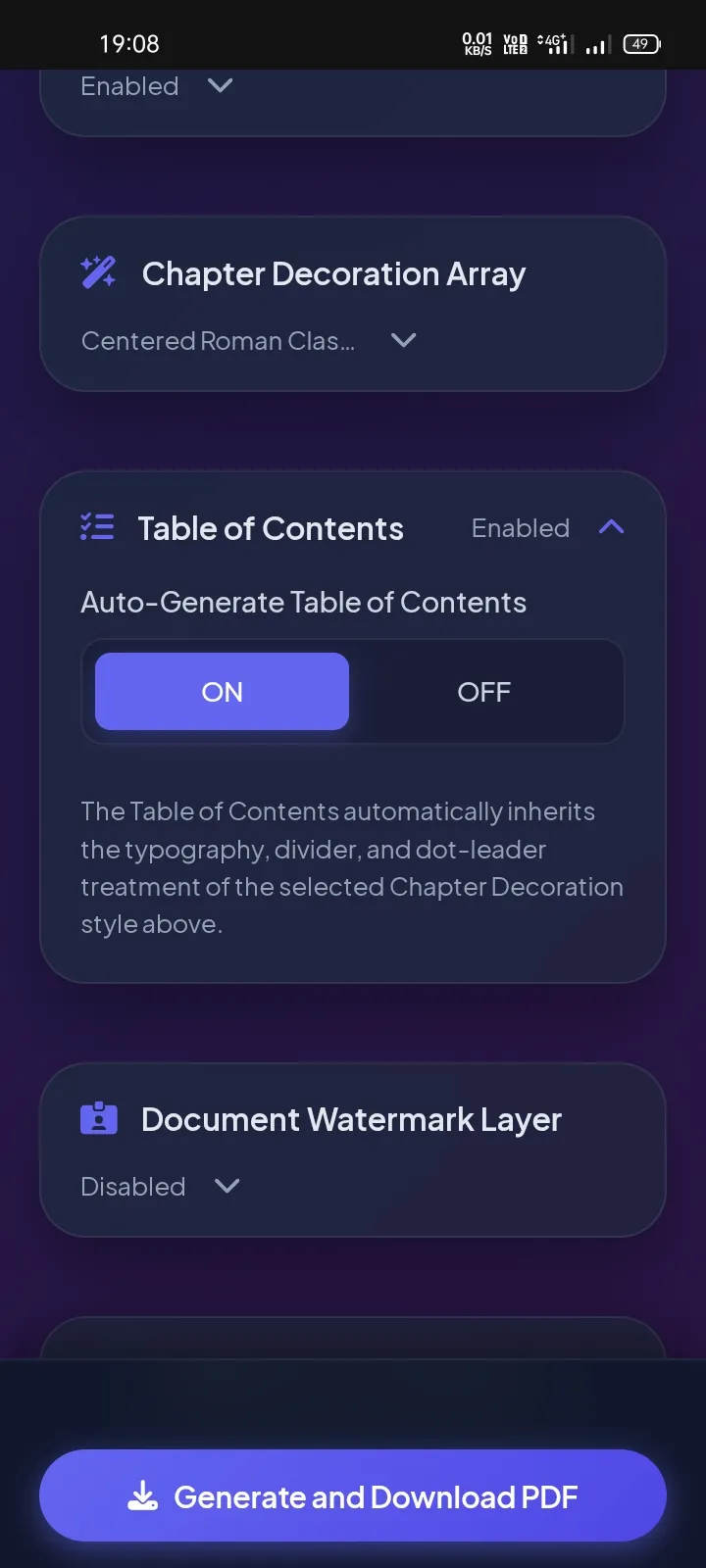
The Table of Contents automatically inherits the typography, divider, and dot-leader treatment of the selected Chapter Decoration style above.
Load transparent layer
100%
15%
💬 Send Feedback
Found a bug or have a suggestion? We'd love to hear from you.
Format Your Book for Amazon KDP Instantly: The Ultimate Free, No-Login Automated Engine
Publishing a book is a monumental achievement. Hours, months, or even years of painstaking research, drafting, and editing go into bringing your story to life. But for many self-publishers and independent authors, the hardest part isn't writing the book—it's formatting it.
📖 Before Formatting Your Complete Book
Before formatting your complete manuscript, we strongly recommend creating a small test book first. Spending just a few minutes testing the layout can save hours of work later and help you achieve a much more professional print-ready result.
Create a small sample book with 2–3 chapters before formatting your complete manuscript.
Learn the correct manuscript structure, including when to use #, ##, ###, subheadings, front matter, scene breaks, and other formatting rules.
Experiment with different Chapter Start Styles, Chapter Decorations, Subheading Decorations, Scene Break Dividers, Running Headers & Footers, Typography settings, Fonts, Trim Sizes, Paper Palette options, Paragraph Controls, Page Numbers, Table of Contents, Watermarks, and other available layout features.
You can freely adjust the size, spacing, alignment, and position of supported elements. This includes uploaded images, chapter decorations, subheading decorations, scene break dividers, drop caps, spacing, and many other visual elements until the layout matches your preferred book design.
Generate a sample PDF and carefully review every page on your device before formatting your complete manuscript.
Once you are satisfied with the appearance and print quality, simply keep the same settings for your complete novel or book.
Recommended for Fiction & Novels
✔ Enable the First Line Paragraph Indent option. This creates a professional first-line indent for every new paragraph, which is the standard layout used in most printed fiction books and novels.
Helpful Tip
Every book has different design requirements. Don't hesitate to experiment with fonts, image sizes, spacing, decorations, chapter styles, scene break dividers, and other layout settings. Story2Book is designed to let you customize these elements until your book looks exactly the way you want.
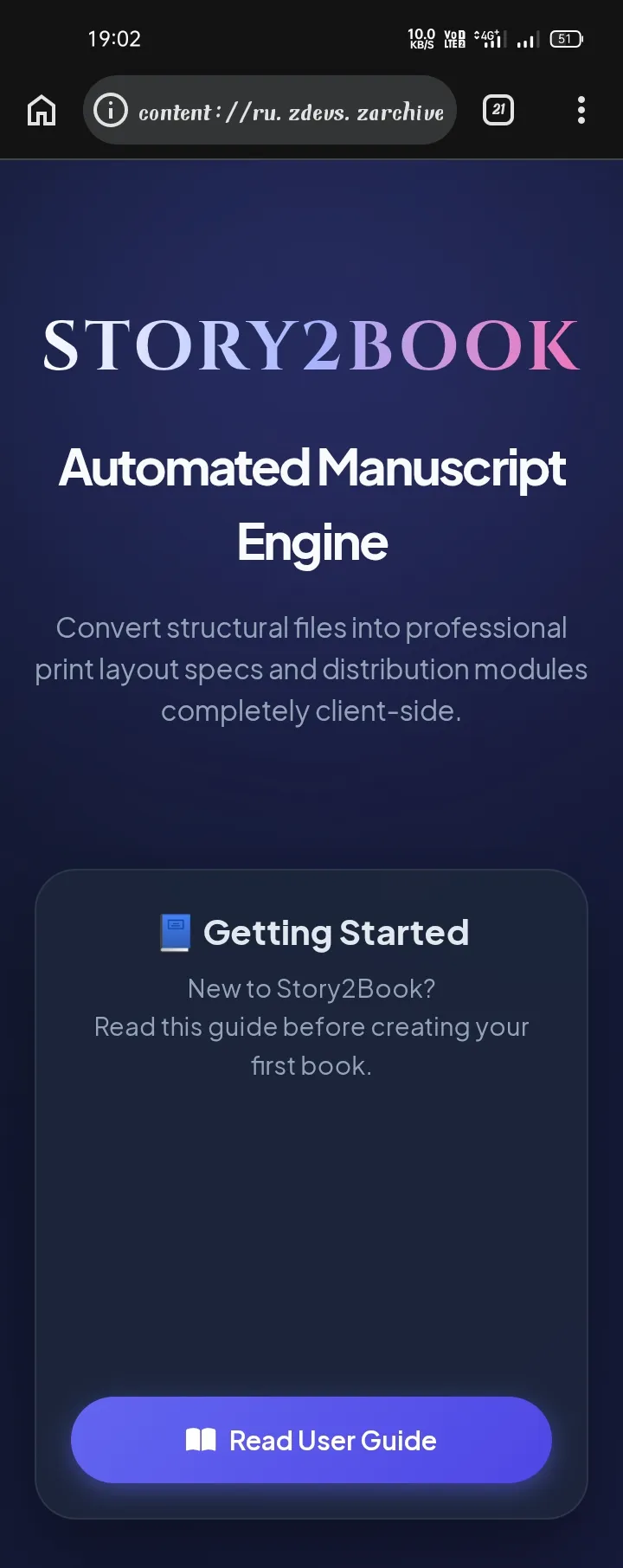
📚 New to Story2Book?
Before creating your sample book or uploading your complete manuscript, we highly recommend reading our complete formatting guide. It explains how to properly prepare your manuscript, structure chapters, use headings (#, ##, ###), create front matter, insert scene breaks, add inline images, and understand every formatting rule supported by Story2Book.
Reading the guide first will help you avoid common formatting mistakes and ensure your sample book—and eventually your complete book—looks exactly as intended.
If you have ever tried to manually format a manuscript in Microsoft Word or Google Docs, you know the nightmare: broken pagination, misaligned margins, rogue headers leaking onto blank pages, and drop caps that ruin your paragraph layout.
The alternative? Dropping hundreds of dollars on complex desktop software or hiring expensive freelance typesetters.
Enter Story2Book - Automated Manuscript Engine & KDP PDF Generator. Story2Book is a 100% free KDP book formatter that operates entirely in your web browser. There are no mandatory logins, no subscriptions, and zero signups required. Most importantly, because it runs as a client-side book publishing tool, your manuscript data never leaves your device.
Seamless Cross-Platform Compatibility: Whether you are working on a desktop PC, a laptop, a tablet, or directly from your smartphone's web browser, Story2Book delivers the exact same lightning-fast performance, layout precision, and full feature access without requiring desktop installations or specialized mobile apps.
The Story2Book Automated Manuscript Engine interface
Why Traditional Formatting Tools Fail Independent Authors
Before diving into the features, let’s look at why authors struggle with formatting and why automated web engines are changing the game.
Feature / Issue
Word Processors
Paid Desktop Tools
Story2Book Engine
Cost
Subscription Bundle
$147 – $250+ One-Time
100% Free
Device Access
Desktop / OS Specific
Desktop App Needed
100% Mobile & Desktop Universal
Login / Signup
Account Required
Registration Mandatory
No Login Required
Data Privacy
Cloud Sync / Saved Online
Local / Account Based
100% Client-Side Privacy
KDP Compliance
Manual Adjustments
Automated
Automated & Print-Ready
Custom Fonts
OS Dependent
Limited Presets
Custom .TTF / .OTF Upload
Core Features Deep-Dive: Story2Book Layout Studio
1. Manuscript Input & Import Engine
Direct Text & File Import: Paste your raw manuscript text directly or drag-and-drop .txt and .md files directly into the editor.
Universal Device Flow: Fully responsive interface works identically whether editing on mobile Chrome/Safari or desktop browsers.
Real-Time Analytics: Keep track of your progress with live word count and character count metrics.
Smart Parsing: Automatically converts structural markers (like #, ##, or ###) into formatted chapters and subheadings while generating your Table of Contents on the fly.
Pasting or importing a manuscript into the input engineAuto-generated Table of Contents settings
2. Typography Matrix & Spacing Architecture
Custom Font Upload for KDP Formatting: Upload your own .TTF or .OTF files to use custom typefaces, including non-Latin scripts.
Font Presets: Built-in choices include Classic Serif (Times), Modern Sans (Helvetica), and Typewriter (Courier).
Micro-Spacing Controls: Adjust base font sizes (10pt, 11pt, 12pt), line height vectors (1.3x–1.7x), paragraph spacing, and margins (0.50" to 1.00").
Widow & Orphan Control: Enable automated line toggles to eliminate trailing single lines at top or bottom margins.
Typography Matrix & Spacing controls
3. Trim Size & Paper Palette Matrix
Paperback Trim Size Layout Studio: Choose from 6×9 in (Trade Novel), 5×8 in (Novella), A5 (International), or Letter (Document Print).
Paper Palette Stock: Match your output preview to standard paper stocks, including Pure White, Natural White, Traditional Cream, Warm Ivory, and Soft Gray.
4. Interactive Book Layout Studio & Inline Images
Automatic Drop Caps Generator: Add drop caps with customizable line spans (1–6 lines), font scaling (2.0x–9.0x), and custom color accent choices.
Chapter Title Styling: Customize header alignment, letter spacing, font weights, and spacing rules.
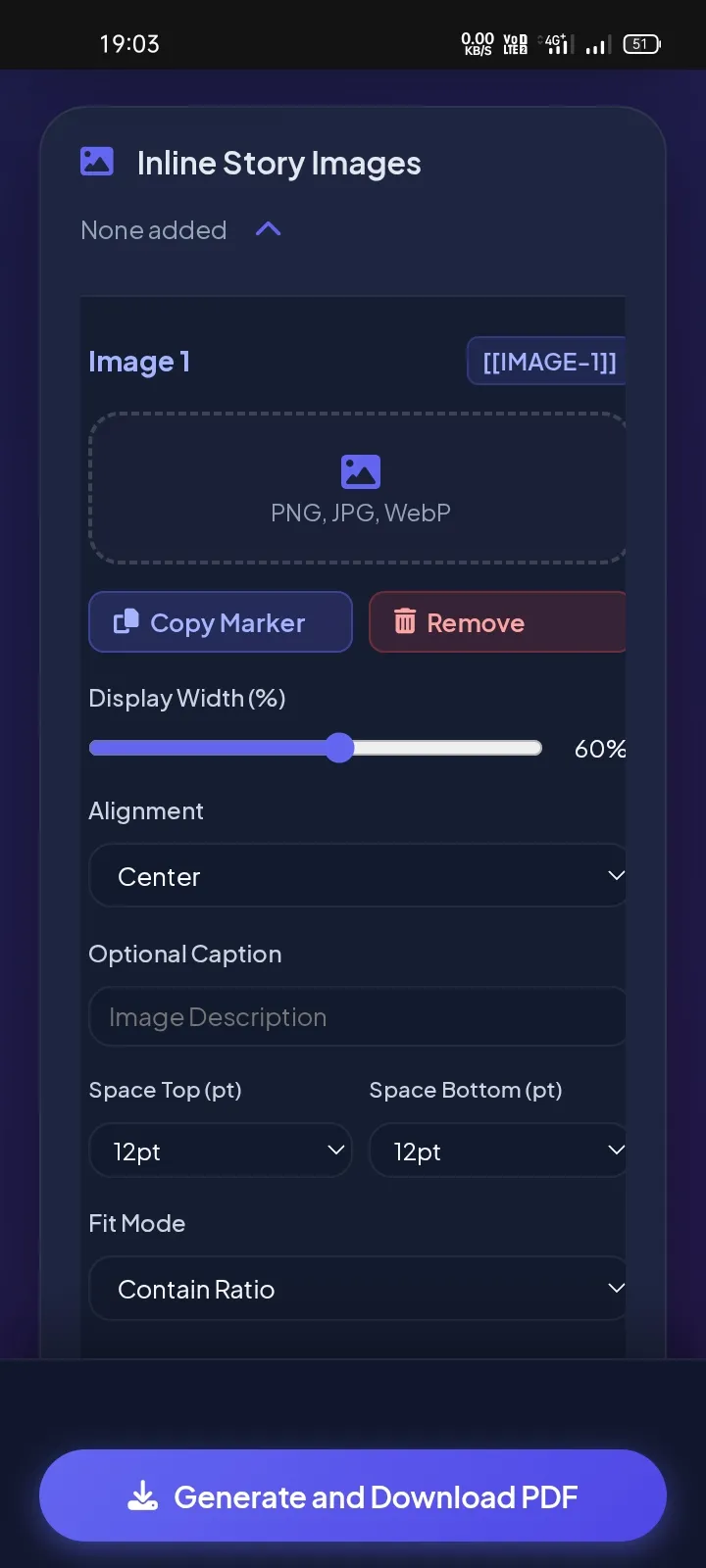
Inline Story Images: Easily embed illustration tokens ([[IMAGE-1]]) with custom display width, alignment, and captions.
The Interactive Book Layout StudioInline Story Image settings
5. Chapter Decorations & Book Start Styles
10 Chapter Start Style Presets: Genre-matched layouts including Centered Serif, Left Modern, Elegant Literary, Vintage Ornamental, Modern Editorial, Contemporary Fiction, Luxury Serif, Romance Classic, Thriller/Mystery, and Nonfiction Professional.
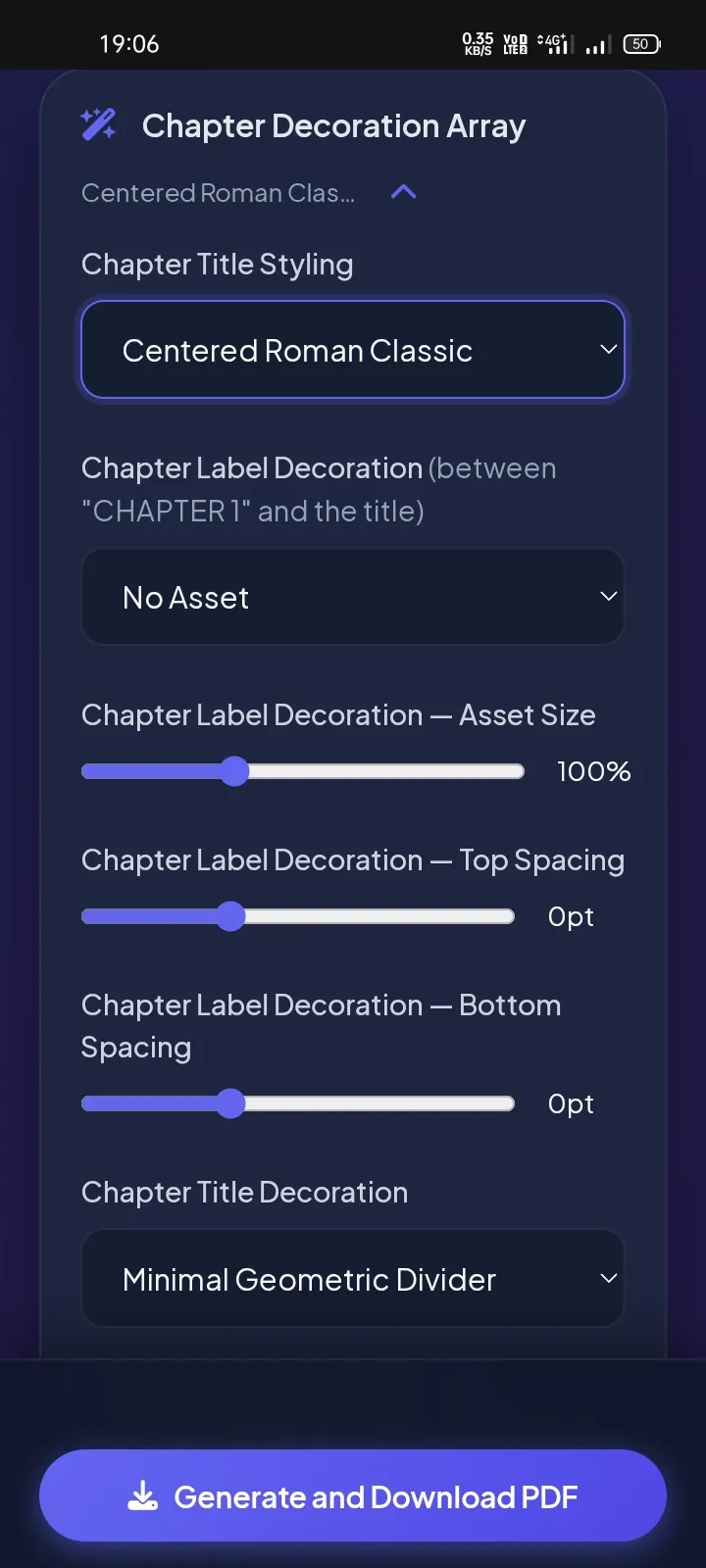
Chapter Label & Title Decorations: Add ornamental SVG graphics (Laurel Sprig, Ornate Flourish, Crest Accent, Twin Dots Rule, Geometric Badge, and more) above or below your chapter number and title.
Subheading Decoration: Apply a matching decorative asset directly beneath chapter subheadings, with independent size and spacing controls, and an option to apply it across every subheading in the book.
Auto Alignment Matching: Decorations automatically align with your chosen Chapter Start Style — centered under centered layouts, left-aligned under left-aligned layouts.
Chapter Decoration array options
Pro Tip for Lightning-Fast PDF Downloads
When uploading inline story images or custom graphics, try compressing high-resolution images prior to uploading. Reducing large 1MB–3MB image files down to under 500KB (using free web image compressors) will significantly accelerate client-side PDF generation speed while maintaining crisp, professional print quality!
Custom Scene Break Dividers: Separate scenes cleanly using standard asterisks (***), ornamental flourishes (❦, ❖), or custom uploaded images.
Why Zero Friction & 100% Client-Side Privacy Matter
When publishing an unreleased manuscript, privacy is paramount. Many online converters upload your manuscript file directly to server databases, exposing your uncopyrighted intellectual property to potential leaks or server logs.
Story2Book operates as a client-side book publishing tool. All typesetting calculations, layout adjustments, typography parsing, and PDF rendering take place locally inside your computer or mobile phone’s browser engine. Your text is never sent to an external server.
How to Format in 5 Easy Steps
STEP 01
Input Manuscript
Paste text or upload .txt / .md file from mobile or desktop.
STEP 02
Set Metadata
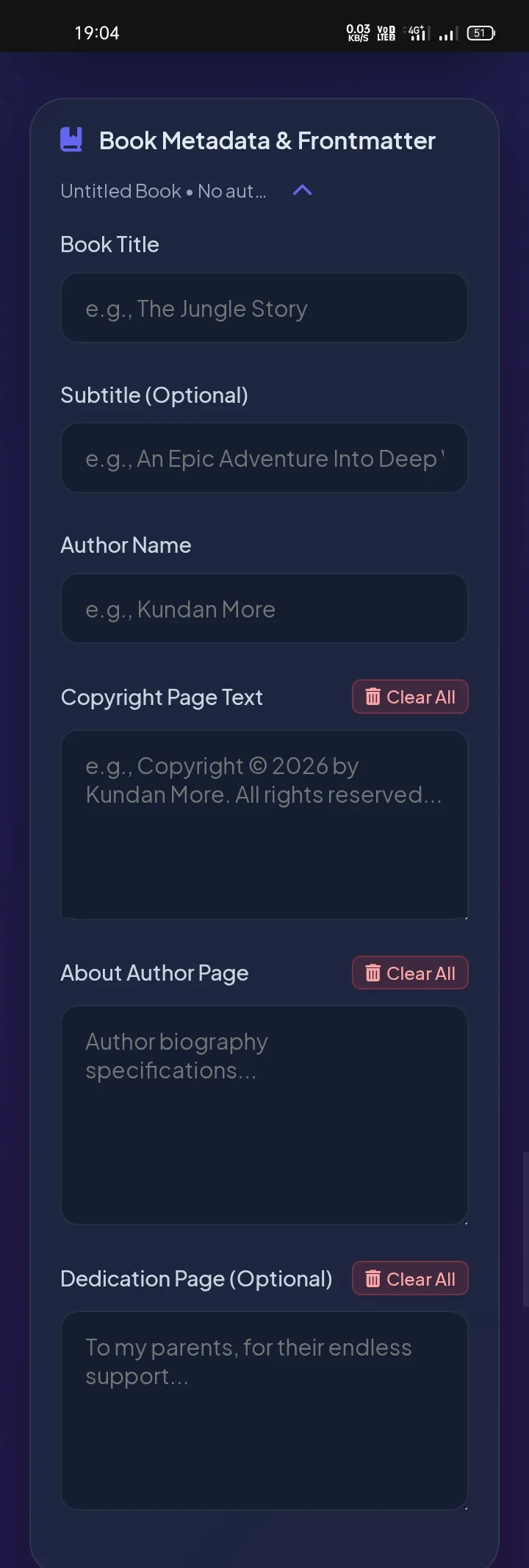
Enter Title, Author, Copyright, and Dedication info.
STEP 03
Select Trim Size
Choose 6x9 Trade or 5x8 Novella size & fonts.
STEP 04
Refine Layout
Enable drop caps, compress images for speed, and set breaks.
STEP 05
Export PDF
Compile and download your print-ready KDP PDF instantly.
Book Metadata & Frontmatter settings
Feature Overview at a Glance
Story2Book's BookForge Engine brings together every stage of manuscript-to-print formatting in one free, browser-based tool. Here's a quick summary of its major capabilities:
Manuscript Input & Parsing: Paste or upload .txt/.md files with automatic chapter, subheading, and Table of Contents detection.
Metadata & Frontmatter: Set Title, Author, Copyright, and Dedication details that compile directly into KDP-ready frontmatter pages.
Typography Matrix: Custom font uploads, font-size and line-height controls, and widow/orphan protection.
Trim Size & Paper Palette: Choose standard KDP trim sizes and preview paper stock tones before export.
Layout Studio & Inline Images: Drop caps, chapter title styling, and inline illustration embedding with alignment controls.
Chapter Decorations: Genre-matched start styles and ornamental SVG graphics for chapter numbers, titles, and subheadings.
100% Client-Side Privacy: All processing happens locally in your browser—your manuscript is never uploaded to a server.
Free, No-Login PDF Export: Compile a print-ready, Amazon KDP-compliant PDF instantly at no cost.
Frequently Asked Questions
Yes! Story2Book is engineered with responsive client-side technology that works identically on smartphones, tablets, laptops, and desktop computers without installing any software or apps.
To maximize PDF compilation speed, compress large images (1MB–3MB) down to ~500KB or less before uploading. This ensures super-fast generation while keeping high print quality.
Yes, Story2Book is a 100% free book compiler PDF tool with no feature paywalls, hidden fees, or premium subscriptions.
No. Story2Book is a client-side tool. Everything runs inside your browser and no data is saved on external servers.
Yes! Margins, headers, pagination, and structural layouts fully comply with Amazon KDP print specs.
Story2Book supports standard KDP trim sizes including 6×9 in (Trade Novel), 5×8 in (Novella), A5 (International), and Letter, with margins automatically calculated to meet Amazon's print requirements.
Yes. You can upload your own .TTF or .OTF font files, and Story2Book embeds them directly into the compiled PDF so your chosen typography renders identically on every device and print run.
Save your manuscript as a plain .txt or .md file and mark chapter breaks with ## before each chapter heading. Optional ### subheadings and [[IMAGE-1]] tokens for inline images are also supported for richer formatting.
Yes. Story2Book's responsive interface gives you full access to manuscript input, typography, layout, and PDF export directly from a mobile browser—no desktop or app installation required.
No. All typesetting and PDF rendering happen locally inside your browser's engine. Your manuscript text and images are never transmitted to or stored on an external server.
Important: Read the Complete Documentation First
To ensure your manuscript is formatted perfectly without syntax errors, please review our official manual before uploading your file. Learn how to structure chapters (##), set subheadings, configure frontmatter, and master every micro-setting in the Book Layout Studio.